
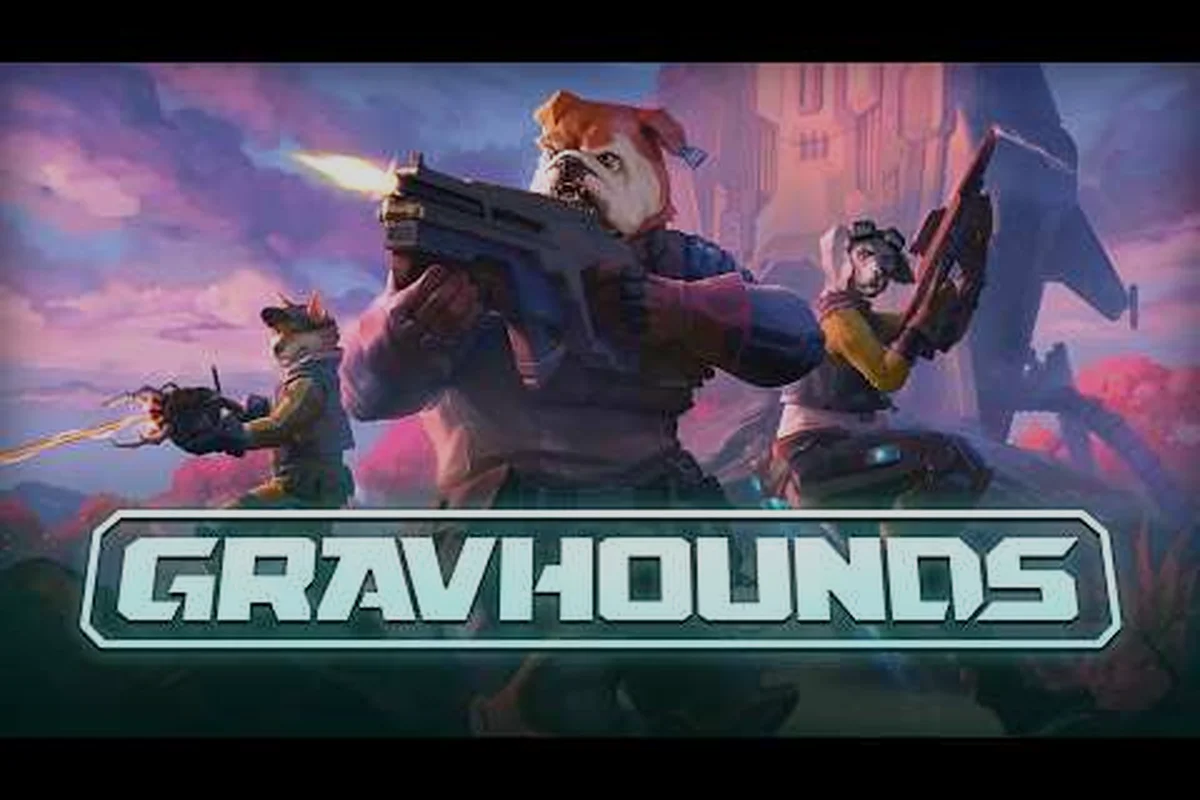
Choosing between GRAVHOUNDS on Steam and Xbox comes down to the device you play on, the people you want in your crew, and how much certainty you need about online sessions. The official listings support up to four-player co-op and cross-platform multiplayer, while private-lobby and dedicated-server details still require care because the public information does not confirm every feature.
GRAVHOUNDS Steam vs Xbox: Core Platform Comparison
The clearest difference between GRAVHOUNDS Steam vs Xbox is the platform surrounding the game rather than the core mission loop. On both versions, a crew lands on hostile planets, builds defenses, gathers materials, and tries to extract successfully. The store pages support the same broad multiplayer concept, but ownership, hardware, storefront features, and session-management details can differ.
The official GRAVHOUNDS Steam store page describes the game as a one-to-four-player co-op action builder. The official Xbox Game Preview page also lists online co-op for two to four players and identifies the game as playable on Xbox Series X|S and PC.
| Platform consideration | Steam version | Xbox version | Practical meaning |
|---|---|---|---|
| Game access | Purchased through Steam | Xbox Game Preview on current Xbox hardware | Availability can depend on store status and region |
| Confirmed player count | Up to 4 | Up to 4 | Both support small co-op crews |
| Cross-platform multiplayer | Not fully documented on the public Steam listing | Explicitly listed on Xbox | Confirm compatibility in-game before planning a mixed-platform session |
| Shared or split screen | Not specified in the supplied Steam listing | Listed on Xbox | Local-screen arrangements may be more clearly documented on Xbox |
| Cloud saves | Not confirmed in the supplied Steam listing | Listed on Xbox | Check synchronization details before starting a long progression |
| Xbox achievements | Not applicable as an Xbox feature | Listed on Xbox | The Xbox edition includes platform achievement support |
| Premium hardware support | Depends on the PC | Optimized for Xbox Series X/S | Console users gain a documented current-generation target |
This platform comparison matters because a feature does not have to change the core game to affect your session. For example, a player may own a capable PC but prefer friends on Xbox, while another player may need a straightforward console build for shared-screen co-op. The right choice depends more on your hardware and friend group than on a completely different rules set.
What Both Versions Support
Both storefronts describe the same central activity: joining a small crew and surviving escalating planetary runs. The official listings identify two-to-four-player online co-op, shared or split-screen play on Xbox, and cross-platform multiplayer on Xbox. That makes the game look consistent in its campaign structure, although cross-play should still be treated as a feature to verify rather than an assumption for every account configuration.
The Xbox listing calls the release a Game Preview. Preview software can receive changes to features, performance, menus, or account requirements. Steam Early Access-style development can produce a similar moving target on PC, although the exact access label is a storefront matter. Before organizing a session, check each participant’s current client, region, and access status.
Players new to the core loop can use the GRAVHOUNDS beginner guide to learn the build, defend, and extract sequence. Understanding that loop makes it easier to tell which differences are meaningful multiplayer details and which are simply normal mission decisions.
Which Version Fits Your Setup?
Steam is the more natural choice when your group already uses PC, prefers Steam's community and overlay features, or wants the game managed through a PC library. Xbox is the clearer choice for players centered on a console ecosystem, especially when the group values documented shared-screen support, cloud saves, achievements, and the explicit cross-platform multiplayer label shown on the official Xbox page.
| Player situation | Better starting point | Reason |
|---|---|---|
| All players use Windows PCs | Steam | Keeps everyone in the same storefront and client ecosystem |
| Friends are split between PC and Xbox | Xbox | Its store page explicitly advertises cross-platform multiplayer |
| The group wants console local co-op | Xbox | Shared and split-screen support is explicitly listed |
| Players own varied PC hardware | Steam, after checking requirements | PC performance depends on the hardware and selected settings |
| The group wants a managed console library | Xbox | Console storefront features and current-generation optimization are documented |
| Players prefer cloud synchronization | Xbox, after confirming account settings | Cloud saves appear on the official Xbox listing |
| Players want to create a consistent recurring crew | Either, after checking lobbies | Neither public listing confirms a complete dedicated-server setup |
A practical decision should not rely on the word “exclusive.” The strongest documented platform distinction is not a different campaign or combat system, but the way each storefront presents account, hardware, local co-op, and online-play features. In the GRAVHOUNDS Steam vs Xbox comparison, console conveniences are clearer on the Xbox side, while PC users generally get the most straightforward setup on Steam.
Cross-Play, Lobbies, and Session Discovery
Cross-platform multiplayer changes who can enter your crew, but the official evidence still needs careful wording. The Xbox Game Preview page identifies cross-platform play for Xbox Series X|S and PC. That supports the possibility of PC and Xbox sessions meeting, yet the supplied public listings do not clearly document every account-linking, invitation, voice-chat, or moderation detail.
This distinction prevents an easy-to-miss error: seeing a cross-platform badge on one storefront does not prove that every Steam activity appears in every Xbox list. Store version, region, client update, and account permissions can all affect discovery. The safe approach is to test the connection before committing to a scheduled run.
| Session question | What the public listings support | What still needs verification |
|---|---|---|
| Can PC and Xbox players play together? | Cross-platform multiplayer is listed on the official Xbox page | Whether every Steam activity appears in the Xbox browser |
| Does Steam have cross-platform multiplayer? | The public Steam listing does not explicitly confirm it | Current in-game behavior and official documentation |
| Can a group join from the same platform? | Online co-op for 2–4 players is confirmed on both | Whether browser filters or region rules affect visibility |
| Are private lobbies supported? | Not explicitly confirmed in the supplied listings | Availability, host controls, and platform-specific limitations |
| Are dedicated servers available? | Not officially confirmed | Server regions, persistence, and configuration details |
Reading the Cross-Play Signal Carefully
The phrase “cross-platform multiplayer” on Xbox means PC and console participation is officially presented as a feature. It should not be expanded into assumptions about dedicated servers, private rooms, cross-shopping, shared progression, or identical menus. Those are separate systems, even when they touch the same session.
A mixed-platform group should first compare current client versions. Each member should open the multiplayer browser, select a test activity, and attempt to join. If the activity does not appear, the group should verify that both accounts are in a compatible region and that invitations are being sent to the correct gamertag or profile. This small test prevents a full crew from waiting on an invite that will never arrive.
The broader GRAVHOUNDS Game Pass multiplayer overview provides additional context on Xbox access and platform availability. It is particularly useful when deciding whether the console edition fits an existing Game Pass library before focusing on lobby behavior.
Building a Reliable Mixed-Platform Test
Run a two-person test before adding the rest of the crew. Start on the same platform, confirm the invitation works, then repeat the process from the other platform. This isolates basic setup issues from party size, voice chat, or region problems. It also gives the host a chance to confirm that every account can see the same activity before friends begin their run.
Useful checks include recording each failed attempt, noting whether the Steam host or Xbox guest triggered the issue, and testing the same Gravhounds lobby guide flow again after restarting the relevant console or game client. A failure that follows the same Gravhounds how to join a game step often points to the invite or platform session rather than server availability; a failure at a different step may reveal a separate account, voice-chat, or Gravhounds private lobbies problem.
-
Confirm that both accounts have completed any preview or beta access requirements.
-
Match the current game update wherever an update prompt appears.
-
Verify that the host and guest use the same invite method.
-
Test one private or friends-only session if that option is visible.
-
Open a second activity afterward to rule out a one-time connection problem.
-
Keep voice communication outside the game until basic party communication has been verified.
This sequence is more reliable than treating an icon in a menu as proof that every group will connect. For example, in a mixed Steam and Xbox group, have the Steam host send the Gravhounds how to join a game invite, confirm the Xbox guest reaches the lobby, then reverse the roles before expanding the party. Because platform invites and Gravhounds dedicated servers can fail at different points, this isolates whether a Gravhounds Steam vs Xbox session issue comes from the invite, the account, or the server while keeping the troubleshooting group small.
Hosting and Joining a Co-op Game
Hosting is the practical center of multiplayer. The person who creates the activity generally controls its visibility, invitations, and start timing, while friends join through the multiplayer browser, an invite, or another platform-supported route. Exact menu labels can change as the preview develops, so use the functions currently shown by your client rather than expecting identical wording on Steam and Xbox.
The official listings confirm that co-op sessions support two to four players. That small cap makes advance coordination useful: everyone should know the intended run length, mission priorities, voice-channel plan, and whether late arrivals should be admitted. A group of four has no spare slot if one invite fails.
A Practical Hosting Checklist
A reliable host should prepare before opening the GRAVHOUNDS lobby rather than troubleshoot after three people are waiting. The sequence below covers checks that remain valid across Steam and Xbox without assuming dedicated-server status: confirm the client is current, verify preview access, create a two-to-four-player activity, and test the invite with one participant before the full crew commits. This matters because Steam Gamertag invitations, Xbox invitations, friends-only visibility, and activity discovery use separate platform systems, so a functioning lobby on one platform does not prove the other route works.
| Order | Hosting action | Why it matters |
|---|---|---|
| 1 | Update the game client | A newer client may affect invitations and activity discovery |
| 2 | Confirm the account is online and eligible | Preview access can affect entry |
| 3 | Create a two-to-four-player activity | The activity matches the confirmed co-op capacity |
| 4 | Choose visibility or friends-only access | Limits accidental joins and protects privacy |
| 5 | Send the platform-specific invite | Gamertag and Steam invitations use different systems |
| 6 | Test with one participant | Confirms the connection before the full crew arrives |
| 7 | Agree on start time and mission plan | Prevents rushed setup and role confusion |
This checklist addresses GRAVHOUNDS how to host concerns without promising controls that have not been publicly documented. It treats the host as the coordinator of a social session first and a technical operator second. In a four-person game, clear timing and a quick connection test are often more valuable than repeatedly recreating the same activity.
Joining From Steam or Xbox
To join, open the multiplayer browser, locate the host’s activity, and use the displayed invitation or join command. If browsing produces no result, check whether friends are online, whether the activity is set to friends-only, and whether the local and remote clients are compatible with the same activity. You can also ask the host to resend the invite after confirming that both accounts appear online.
The most important distinction in GRAVHOUNDS how to join a game guidance is platform identity. A Steam friend and an Xbox friend may be in the same supported session, but their platform invitation paths remain separate. Use the correct platform identity, not only a character name or an in-game display name that several players may share.
If the group is still learning the missions, the demo preparation guide can help players confirm access before the session. Resolving download or preview problems ahead of time keeps lobby troubleshooting focused on multiplayer rather than account installation.
Private Lobbies and Dedicated Servers: What Is Confirmed
Private lobbies are important for planned groups because they can keep an activity away from random arrivals and make coordination easier. However, the supplied official Steam and Xbox listings do not explicitly confirm a complete private-lobby feature set. That means GRAVHOUNDS private lobbies should be discussed as a menu-dependent capability, not presented as a guaranteed feature on every platform and account.
A player may see a friends-only, invite-only, password, or closed-session option. Another player may see only public browsing and direct invitations. The difference can reflect a preview build, platform permission, account settings, or an unfinished interface feature. The safest description is that invite-based small-group sessions are confirmed, while the exact private-lobby controls require in-game verification.
| Feature | Steam public information | Xbox public information | Confidence level |
|---|---|---|---|
| Two-to-four-player co-op | Confirmed | Confirmed | High |
| Shared or split screen | Not stated in the supplied listing | Listed | High for Xbox |
| Cross-platform multiplayer | Not explicitly stated | Listed for Xbox and PC | High for the Xbox listing; verify actual matching |
| Cloud saves | Not stated | Listed | High for Xbox |
| Dedicated servers | Not confirmed | Not confirmed | Unverified |
| Private-lobby controls | Not explicitly confirmed | Not explicitly confirmed | Verify in the current client |
| Invite-based joining | Platform activity systems are expected, but exact labels vary | Platform activity systems are expected, but exact labels vary | Confirm the current flow |
Why Dedicated Servers Need a Stronger Evidence Standard
A dedicated server normally means a persistent or configurable online world whose rules, sessions, and administration can be managed by a server operator. That is more specific than simply having co-op activities or peer-hosted sessions. Because neither verified page confirms dedicated servers, the article should not claim that players can rent, configure, port-forward, or administer one.
The same caution applies to GRAVHOUNDS dedicated servers. Their existence, region list, hosting rules, and support status are unknown in the public information supplied for this comparison. If an in-game option explicitly mentions dedicated servers, treat it as a newer feature and verify its requirements in the live client and official release notes. Until then, describe the known feature as small-group co-op with platform-specific invitations.
This distinction matters for server communities. A community may plan around scheduled activities without operating dedicated infrastructure, which is perfectly adequate for a four-player game but should not be described as server administration. Accurate terminology protects communities from making plans based on features that are not confirmed.
A Private-Session Verification Routine
When a private option appears, create a two-player test session and try three checks. First, confirm that a non-invited account cannot browse the activity. Second, send a fresh invite from the host and make sure the guest can accept it. Third, repeat the test on the other platform if the Xbox listing’s cross-platform multiplayer label applies to that activity.
Record the result rather than relying on memory. A menu that says “Friends” may filter differently from “Invite Only,” and a failed test can reveal a platform-specific restriction more clearly than a general support answer. This routine also gives players a direct answer to GRAVHOUNDS private lobbies questions based on the current build rather than an outdated community report.
Steam or Xbox: Recommendations by Player Type
The best platform depends on who needs to play, where the crew gathers, and which online conveniences you can verify. Both versions support the same core co-op structure, so choosing one should begin with compatibility and access. The Xbox page provides clearer documentation for cross-platform play, local-screen co-op, cloud saves, and console achievements; Steam remains the natural home for players whose gaming habits and hardware are already PC-centered.
| Recommendation | Best fit | Evidence-based reason |
|---|---|---|
| Choose Xbox for mixed PC-and-console groups | Players who want a documented cross-platform entry point | The official Xbox page lists cross-platform multiplayer |
| Choose Xbox for local console co-op | Families or groups sharing a display | Shared and split-screen support is listed |
| Choose Steam for an all-PC crew | Players who manage their library on Windows | One storefront and one client ecosystem simplify coordination |
| Choose Xbox for cloud saves and achievements | Players who use Xbox account features | Both features appear on the official Xbox listing |
| Check either platform before scheduling | Anyone requiring private lobbies | Exact private-lobby controls are not explicitly confirmed publicly |
| Do not plan around dedicated servers | Players seeking persistent server administration | Dedicated-server availability remains unconfirmed |
Best Choice for an All-PC Group
For an all-PC crew, Steam removes an extra variable. Players can install the current client, verify their accounts, and use the same multiplayer browser without translating between console and PC interfaces. That does not make the game more feature-rich automatically, but it reduces the number of account and invitation systems involved during setup.
Before the first full session, every member should complete a one-time test: create an activity, invite a friend, join, and begin the mission together. If that works, the group can move to more ambitious schedules. If it fails, troubleshooting one connection is easier than discovering the problem when four players are already online.
Best Choice for a Mixed-Platform Group
Choose Xbox as the coordination point when the crew includes console players and the official cross-platform label applies to the session. Each platform user should still use the correct invite identity. The host should not assume that an invite sent through one account will appear identically for recipients on another storefront.
A mixed-platform crew benefits from a three-stage rehearsal: invite one PC player, invite one Xbox player, then run a complete short mission with all members present. The exercise tests visibility, party size, and launch readiness while the group is still small. It also prevents a successful one-to-one connection from masking a three-person or four-person issue.
Best Choice for Access and Convenience
Xbox has the clearer public feature set for current console users. Its listing identifies Xbox Series X|S support, cloud saves, achievements, shared and split-screen play, and cross-platform multiplayer. Those features make it attractive for households centered on a console, especially if the crew uses services connected to the same Xbox account.
Steam, meanwhile, is the straightforward option when the hardware is already a PC and the group values a unified PC library. Steam Deck users should check individual performance and control expectations, but the supplied official listing does not provide a dedicated Steam Deck certification. The Xbox Series and Game Pass multiplayer overview is a better reference for current Xbox Series X|S availability.
A Cross-Platform Troubleshooting Checklist
Most apparent platform problems fall into a small number of categories: client version, preview access, region, invitation identity, activity visibility, and capacity. Work through them in that order because each step eliminates a broader cause without requiring advanced network knowledge. A two-player test should be the standard repair procedure whenever one member can join but another cannot.
| Symptom | Likely checks | Best corrective step |
|---|---|---|
| Activity is not visible | Friends list, filters, region, party privacy | Recreate the activity and send a direct invite |
| Invite does not arrive | Correct platform identity, online status, pending friend request | Accept any pending request, then resend the invite |
| Steam friend cannot see Xbox activity | Current client and confirmed cross-platform support | Update both clients and test with a fresh activity |
| Xbox friend cannot see Steam activity | Whether Steam supports the session in the current build | Use the Xbox-hosted cross-platform option or verify official documentation |
| Fourth player cannot enter | Four-player session capacity | Free a slot or start a separate session |
| Private option is missing | Current menu, account permissions, preview version | Update the client and review all multiplayer filters |
| Session disconnects | Network stability, client version, platform service | Rejoin once, then test with a smaller group |
| Save is not synchronized | Cloud-save account and platform settings | Confirm the intended platform account before relying on sync |
Fix the Session Before Changing the Squad
Avoid replacing every participant when one connection fails. First test the host and one guest, then add the remaining crew one at a time. This isolates whether the issue belongs to the host, a particular account, the group size, or the platform pairing. If two PC players work but an Xbox player cannot see the activity, the problem is more likely platform-related than lobby capacity.
Keep a dated log of the GRAVHOUNDS client version, each platform involved, and the result of every host-and-guest test. For example, record whether a Steam host can admit an Xbox player, whether the Xbox player appears in the private lobby, and whether both players reach the same session after a reconnect attempt. Community reports can reveal recurring cross-platform pairing or lobby-entry failures, but preview updates may alter dedicated-server behavior; treat those reports as evidence to retest, not as a substitute for checking the live client.
When to Seek Additional Help
Official store listings and the current game client should be checked before relying on general platform advice. If a visible button fails to work, record the platform, client version, region, selected visibility setting, and approximate time of the attempt. That compact report is more useful than saying an activity was “not working,” because it distinguishes discovery, access, and connection issues.
Players should also be cautious with community claims about dedicated servers or hidden lobby functions. Until an official page confirms those systems, community testing can describe what one build displayed, but it cannot establish permanent availability. For platform-specific account troubleshooting, use the appropriate Steam or Xbox support channel with those same details.
Frequently Asked Questions
Does GRAVHOUNDS support cross-play between Steam and Xbox?
The official Xbox Game Preview page lists cross-platform multiplayer for Xbox Series X|S and PC, but the supplied Steam listing does not explicitly confirm Steam participation. Players should update both clients and test a fresh two-person activity, because invitation paths and activity discovery can differ between storefronts.
Can I create a private lobby for my friends?
Private-lobby controls are not explicitly confirmed on either verified store page. The current client may offer friends-only, invite-only, or similar filtering, and those options can change during preview development. Confirm that both players can see and join a newly created activity before inviting the full crew.
Are dedicated servers available for GRAVHOUNDS?
Dedicated-server availability has not been officially confirmed in the public Steam or Xbox information available for this comparison. The confirmed feature is online co-op for two to four players. Avoid planning around custom server administration until the developer publishes explicit details about regions, configuration, and access.
How do I host a co-op game on Steam or Xbox?
Create a multiplayer activity for up to four players, choose the desired visibility option, and send an invite using the guest’s correct platform identity. Test the connection with one player, then invite the remaining crew. Confirming access and the current client version before the full group arrives reduces setup problems.
Which version is better for PC and Xbox players together?
The Xbox version currently provides the clearest official cross-platform signal because its store page lists Xbox and PC multiplayer. A mixed group should still verify the actual activity with a short rehearsal, use platform-specific invites, and check for preview-access or regional restrictions before scheduling a complete mission.